
Envelopes
Assign money to envelopes, then spend. Each category shows what’s left to spend.

Assign money to envelopes, then spend. Each category shows what’s left to spend.

Set targets, then watch spending. Nothing to assign or move, just review. Each category shows over or under its target.

A target can be every month, every year, build up to an amount, or by a date. The ring fills as you assign, and shows a check when this month’s share is funded.
When a category runs short, Balance ranks the ways to cover it.

When Ready to Assign moves, open it to see the named causes (a statement posted, spending, a refund, an assignment) that add up to the change.

One envelope for each card. For a card you pay in full, it holds everything you owe on it, not only the last statement.

Set Aside for next month: park spare money for the month it’s for. When that month comes, release it to Ready to Assign with one tap.

Linked transactions usually arrive with a category. A pending charge is marked Pending and counts against its category before it posts. A pending deposit joins Ready to Assign once it posts.


Scan a receipt and split the purchase into categories. It does not add a new transaction. The photo is saved on your devices and in your personal iCloud.
Bring transactions in from a spreadsheet or another app as a .csv file. The import brings history. It does not bring budgets, targets or assignments.

Tag a purchase, or just one line of a split, as FSA Eligible or Tax Deductible. Build a PDF or CSV on your device to send with your own claim. Nothing is uploaded until you share it. Not tax advice.

Pick what you’re buying, and Polaris names the best card you already have.
Illustrative estimate, not financial, investment, or tax advice.

A gold mark shows a purchase another card you own would have paid more for, and by how much.
Illustrative estimate, not financial, investment, or tax advice.

Overview can flag a card credit that is about to end, with its amount and when it ends, if Polaris hasn’t seen a matching charge on the card.
Illustrative estimate, not financial, investment, or tax advice.
Estimates only. Confirm earn rates with your issuer.

When a subscription’s price goes up, it is flagged for you, with what it costs more a year.

Recurring lists the charges that repeat, split into subscriptions and bills. See what your subscriptions cost a month and a year.

See what came in, what went out and the net over 3, 6 or 12 months, or dates you pick. Pick the categories, and the bars and totals follow.
Your accounts, your home and your holdings in one number.
Recurring charges and price rises are flagged for you on any iPhone, iPad or Mac. Written insights use Apple Intelligence and need an iPhone, iPad or Mac that supports it.¹
¹ iPhone 15 Pro, iPhone 15 Pro Max, iPhone 16 models or later, or iPhone Air; iPad mini (A17 Pro) or iPad models with M1 or later; or MacBook Neo or a Mac with M1 or later. On iOS 26, iPadOS 26 or macOS 26 or later, with Apple Intelligence turned on in a supported language. Everything else in Polaris Budget works without it.

Invite your partner. They edit the same budget from their own iPhone, iPad or Mac. Your partner is included at no extra cost. One subscription covers you both.
For each account, choose what your partner sees: Everything, Balance only, or Nothing. Each of you links your own banks, and neither of you sees the other’s logins.

Once your partner joins, you can add their age and take-home pay to the retirement plan. It is off until you turn it on.
Illustrative estimate, not financial, investment, or tax advice.

Your return beside the S&P 500 and a 60/40 blend, with estimated dividends.
Illustrative estimate, not financial, investment, or tax advice.

A retirement outlook built from your own accounts, from 1,000 simulated market paths.
Illustrative estimate, not financial, investment, or tax advice.

Debt payoff: see a projected debt-free date for each card and loan, and how paying more moves it sooner.
An estimate from your balance, rate and payment, not advice.
Illustrative estimate, not financial, investment, or tax advice.
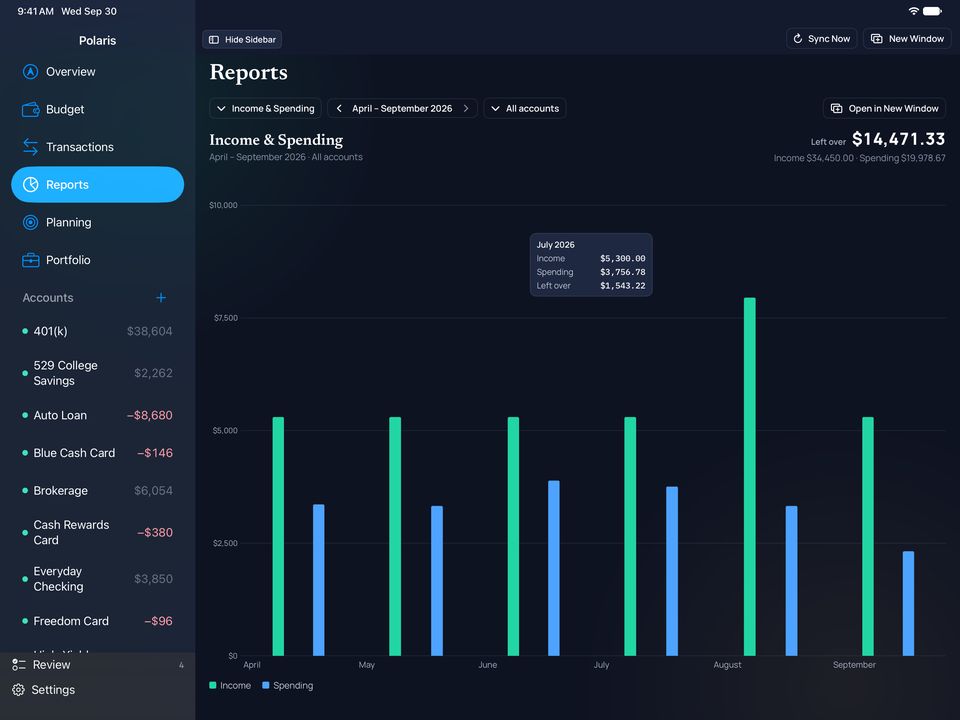
Polaris Budget on iPad: a sidebar, Reports and Planning that fill the window, and a transaction table.
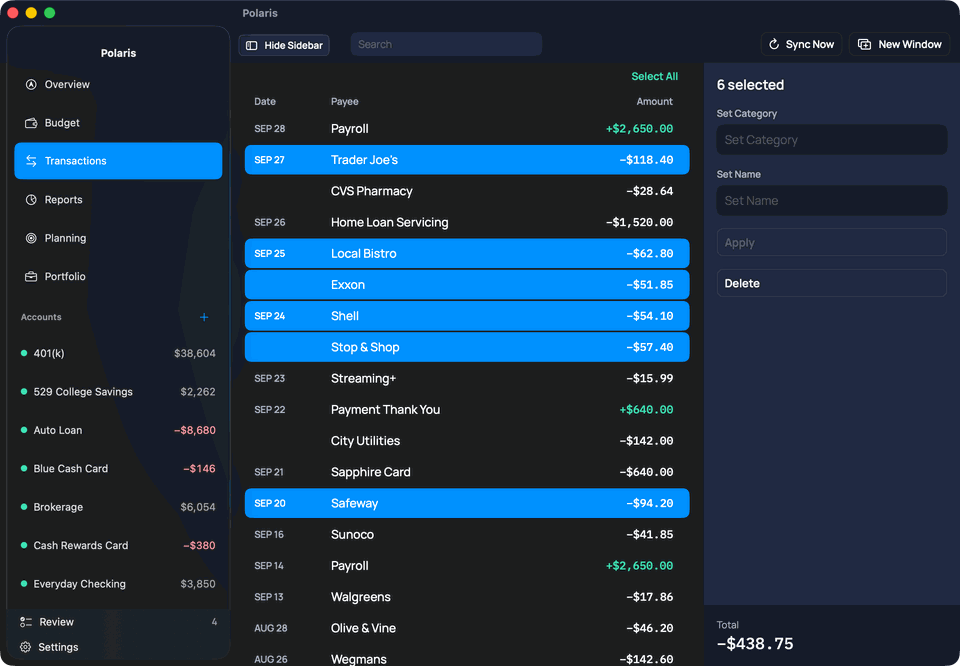
Polaris Budget on Mac: the same budget, in a window. Command-click and Shift-click select transactions in the table.